
Sync Google Drive or Dropbox with your Shopify document library
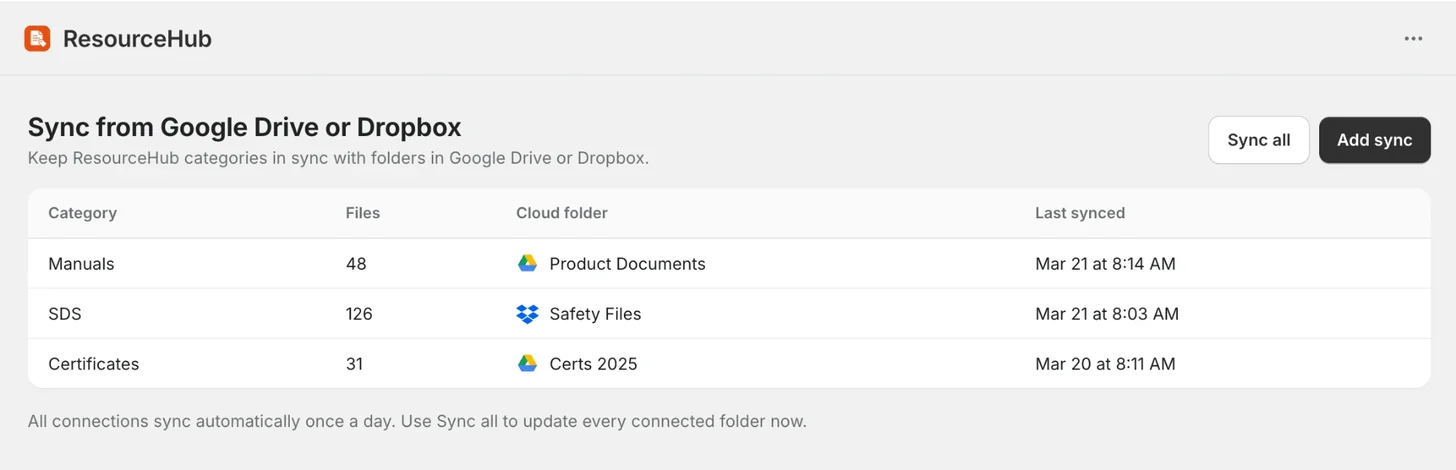
Create a sync
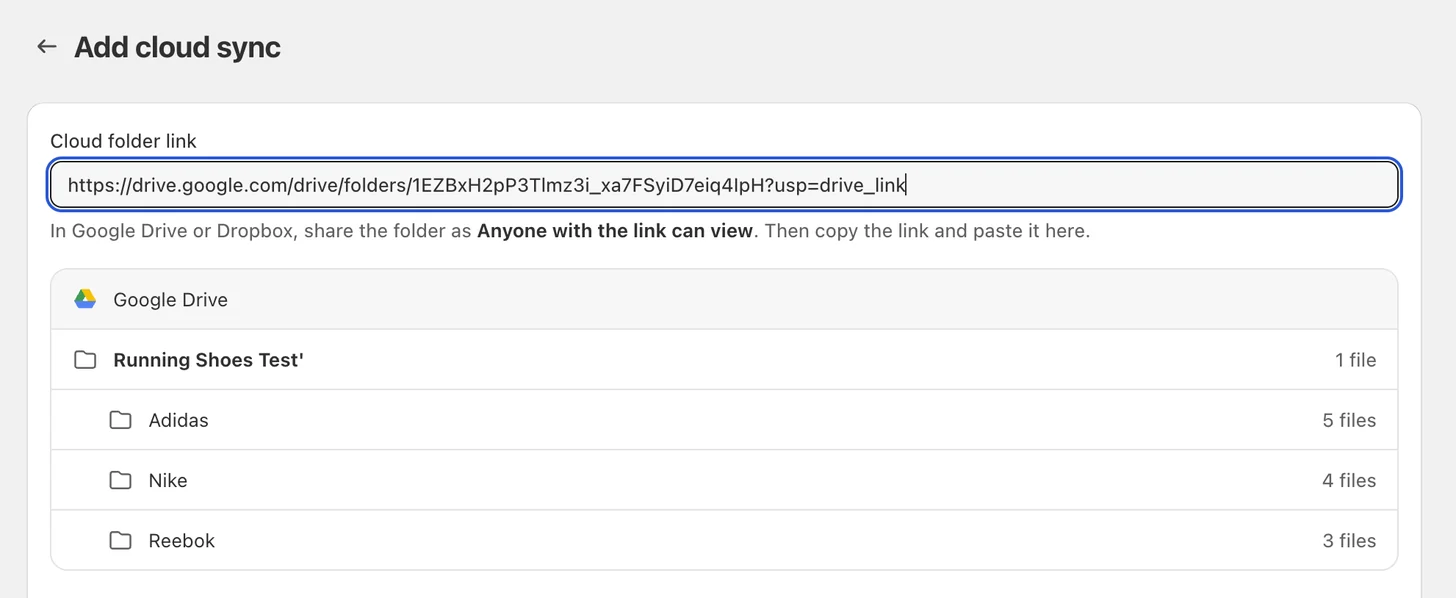
- In Google Drive or Dropbox, share the folder as Anyone with the link can view, then copy the folder link.
- In ResourceHub, go to Resources › Import › Sync from Google Drive or Dropbox and click Add sync.
- Paste the link into Cloud folder link. ResourceHub reads the folder and shows what it found: the folder, its subfolders, and how many files are in each.
- Under Where should these files go in ResourceHub?, choose one:
- Create a new category. Give it a title, which is filled in from the folder name, and choose a parent if you want it to be a subcategory. Folders inside the connected folder become subcategories.
- Add to a category I already have. Pick the category. If it already contains resources, ResourceHub asks how you want to handle them. See the next section.
- Click Create sync.
Adding to a category you already have
What happens next depends on the category you pick.
- The category is empty. The files from the connected folder sync straight in. Folders inside the connected folder become subcategories.
- The category already contains resources. ResourceHub tells you how many resources are already there and asks what it should do with them. Choose one:
- Keep existing resources. Your current resources stay, and the files from the connected Google Drive or Dropbox folder are added alongside them. The sync only manages resources it creates.
- Replace with cloud files. The existing resources in that category are deleted from ResourceHub, and the files from the connected folder are synced in.
How folders and categories work
Your library mirrors the folder you connect. The folder becomes a category, the folders inside it become its subcategories, and the files in each folder sync into the matching category.
For example, connecting a Running Shoes folder that contains Adidas, Nike and Reebok folders gives you a Running Shoes category with Adidas, Nike and Reebok subcategories, each with its own files.
How automatic syncing works
ResourceHub checks the connected folder once a day. You can also run a sync anytime: use Sync now on a single connection, or Sync all to update every connected folder at once.
When a sync runs:
- New files are added.
- Changed files are updated.
- Files deleted from the connected folder are also removed from ResourceHub if they were created by that sync.
- Other ResourceHub resources are left untouched.
Every sync run is listed in the import log. Open Import › Import log to see each run with its status, how many files were processed, how many succeeded and how many had errors. Click Download report on any run for the details.
Disconnect a sync
Open the sync from the list, then choose Disconnect under More actions. ResourceHub stops checking the cloud folder for changes.
Resources already added by the sync remain in ResourceHub and are no longer managed by the connection.
To sync a different folder into the same category, disconnect the sync, then add a new one.
Troubleshooting
ResourceHub cannot access the folder
Check that the Google Drive or Dropbox folder is still shared as Anyone with the link can view and that the folder link is still valid.
The sync failed
Open Import › Import log and download the report for that run to see which files had errors. Then run the sync again. If the problem continues, check that ResourceHub can still access the connected folder.
A file is not appearing
Confirm that the file is inside the connected folder, then run Sync now.