Show resources on product and collection pages
Show manuals, PDFs, spec sheets and other connected resources on Shopify product and collection pages.
ResourceHub can show active resources directly on the product and collection pages customers are already browsing. Set up product pages, collection pages, or both.
Product pagesShow resources connected to a product or SKU on that product’s page.
Collection pagesShow resources featured on a collection where customers browse related products.
Show resources on product pages
Once enabled, active resources connected to a product or SKU appear on product pages that use the ResourceHub block.
- From the ResourceHub dashboard, under Setup status, click Enable beside Display resources on product pages.
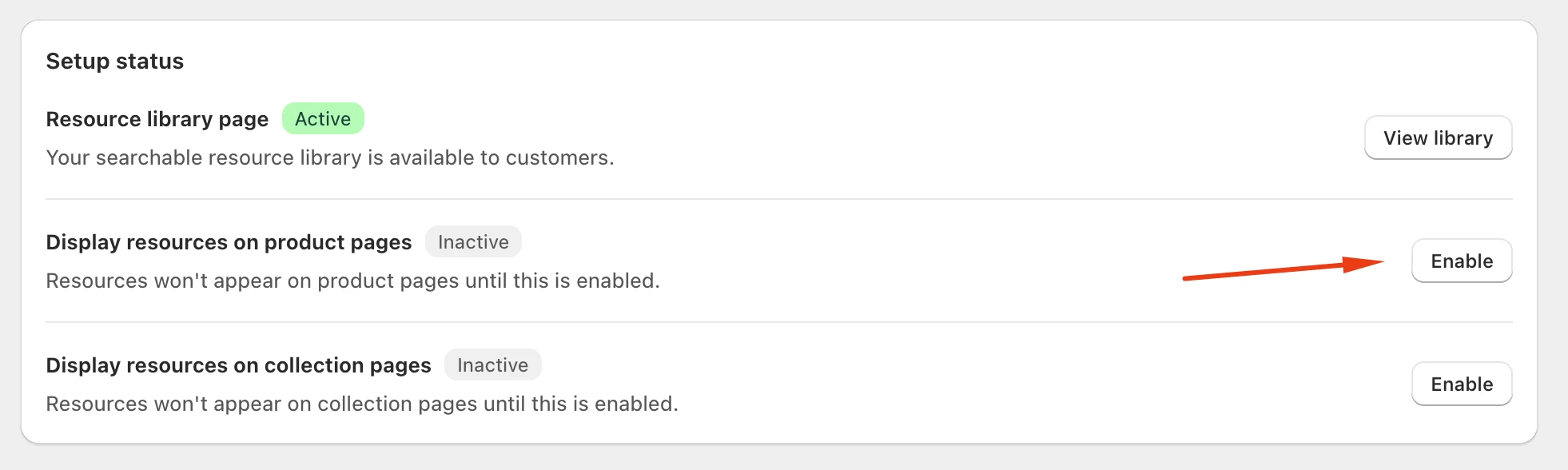
Setup status on the ResourceHub dashboard. Enable is beside each display option.
- Shopify opens the theme editor on the Default product template. Under Apps, click Product Resource so you can see the block and open its settings.
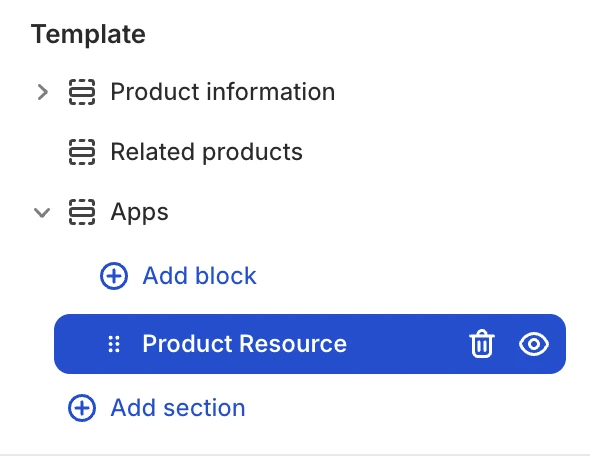
The Product Resource block sits under Apps in the theme editor.
- Review the sample preview in the theme editor. The sample resources are shown only so you can see how the block will look. They do not appear on the live storefront.
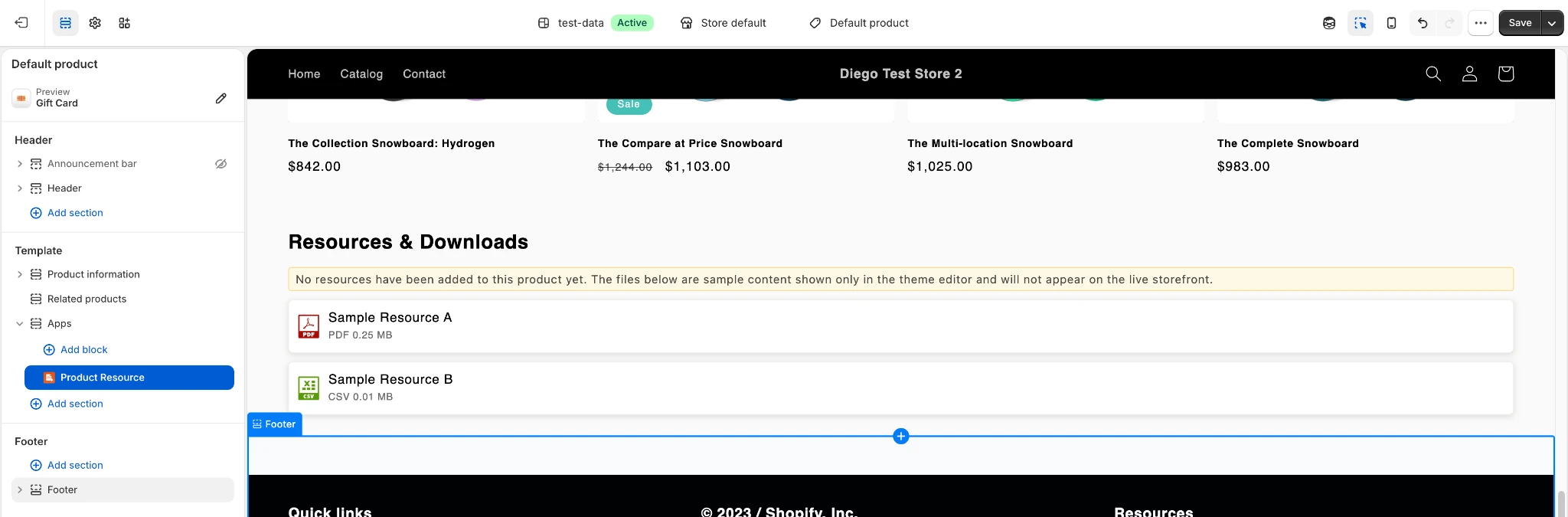
Sample Resource A and B are preview-only placeholders.
- Customize the block if needed. You can change the header title, number of columns, typography, colors, spacing, category grouping, and other display settings.
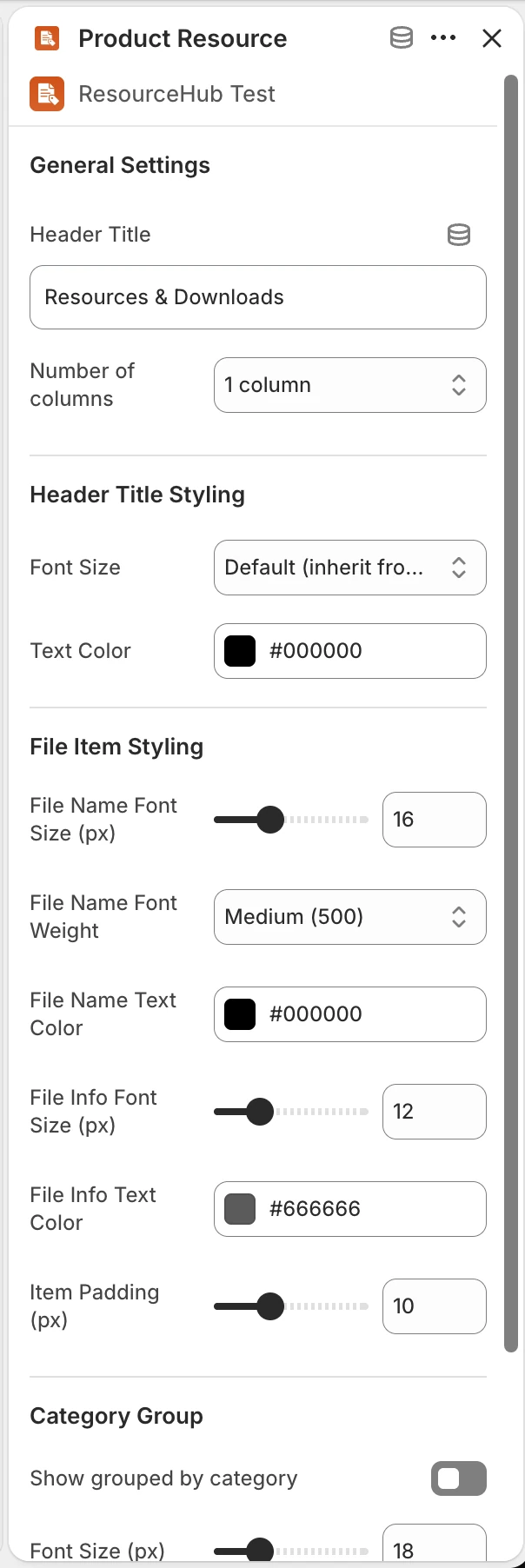
The block settings panel, from header title through category grouping.
- Click Save.
If you use another product template
Use the template selector at the top of the theme editor to choose another product template. Make sure the Product Resource block is present on each product template where you want resources to appear.
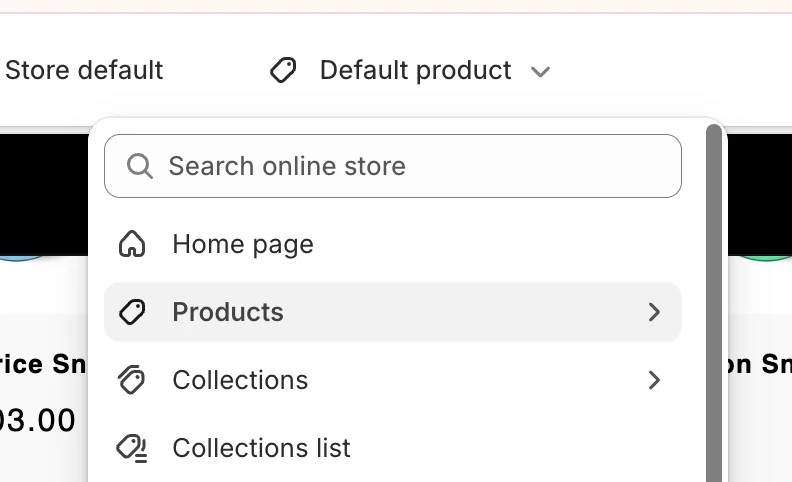
The template selector at the top of the theme editor.
What customers see
On the live storefront, ResourceHub shows the active resources connected to that product. If no resources are connected, the sample items from the theme editor are not shown.
Resources appear here once they are connected to the product or SKU. See Connect resources to products and SKUs.
Show resources on collection pages
Resources featured on a collection can also appear directly on that collection page.
- From the ResourceHub dashboard, under Setup status, click Enable beside Display resources on collection pages.
- In the Shopify theme editor, open the ResourceHub app block for the collection template so you can preview it and open its settings.
- Customize the block if needed.
- Click Save.
If you use another collection template
Use the template selector at the top of the theme editor to choose the collection template you want. Make sure the ResourceHub block is present on each collection template where you want resources to appear.
What customers see
On the live storefront, ResourceHub shows the active resources you have featured on that collection.