
Connect resources to products and SKUs
Attach a manual, datasheet or PDF from your ResourceHub library to one or many Shopify products and variants. Customers find it by SKU in the library and on the product page, and you update it once.
How product and SKU linking works
- Customers can search by SKU in your library to find resources connected to that Shopify product.
- A resource can be connected to more than one product when it genuinely belongs to multiple products or variants.
- Linked resources can also appear on product pages when the ResourceHub product-page block is enabled.
See 3.1 Show resources on product and collection pages for storefront placement.
Link products while adding or editing a resource
For most merchants, this is the easiest way to connect a resource to the right products and SKUs as you work.
- Add a new resource or open an existing resource.
- In Products, click Add products.
- Search for the Shopify product you want to connect.
- Select the product or variant you want to link.
- Click Select, then save your resource.
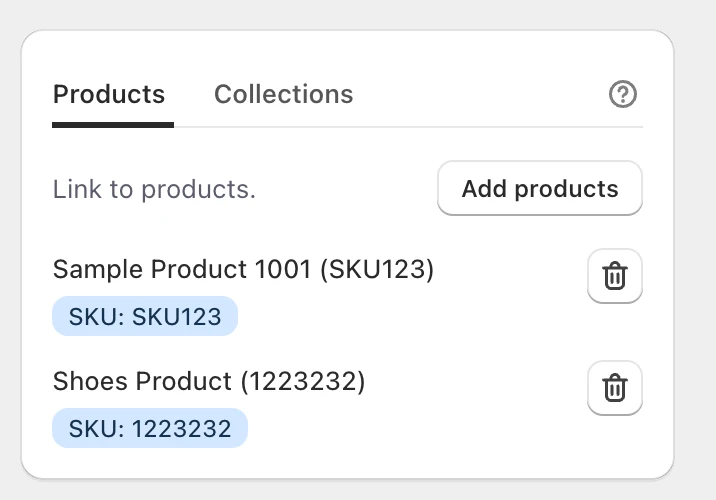
Linked Shopify products and their SKUs appear directly on the resource.
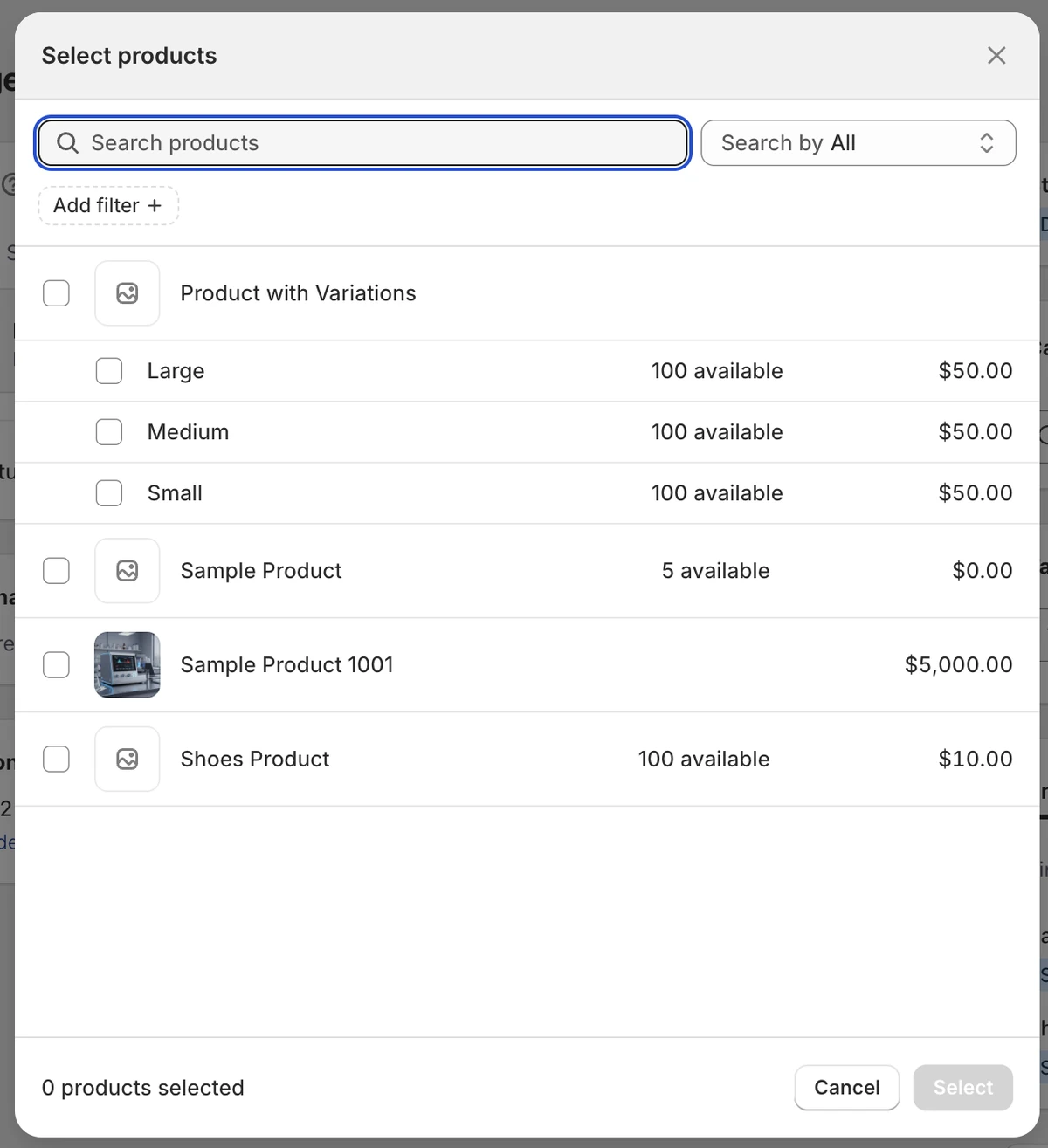
Search and select the Shopify product or variant you want to connect.