Protect your resources
Access is controlled at the category level. Go to ResourceHub › Categories, open a category, and choose its Visibility setting.
Resources inside that category use its access rules.
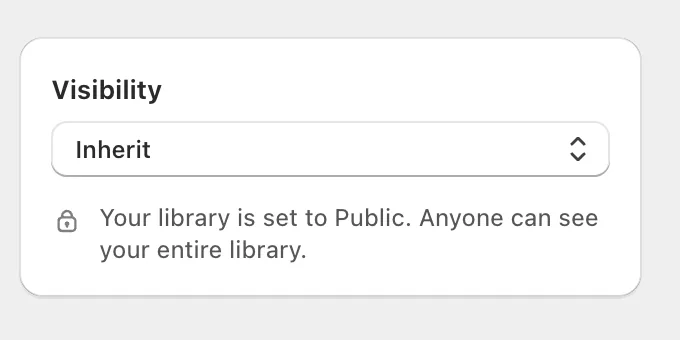
Choose a visibility setting
Use the visibility options below to decide whether a category follows the access rules above it, stays public, requires login, or is restricted to specific customers or companies.
| Category visibility | What it does |
|---|---|
| Inherit | A subcategory uses its parent category’s visibility setting. A top-level category uses the library’s visibility setting. |
| Public | Guests and logged-in customers can access the category. |
| Logged-in only | Login required. Any logged-in customer can access the category. |
| Restricted | Login required. Only customers or companies with matching selected tags can access the category. |
Your library mode determines which category visibility options are available. Public has no category visibility controls. Public with Visibility Controls includes all four options. Private includes only Inherit and Restricted.
Protect a category
- Go to ResourceHub › Categories and open the category.
- Open Visibility.
- Select Logged-in only or Restricted.
- If you choose Restricted, select the customer or company tags that should have access.
- Click Done, then save the category.
Most restrictive wins. If one category is Public and another is Restricted, that resource is Restricted. We do this so nothing gets exposed by accident. If you want that resource visible, remove it from the restricted category or change that category's visibility.