
Build your navigation with categories
Categories control the browse structure of your library.
How categories work
- Parent categories become the main navigation.
- Subcategories act as filters inside that section.
- A resource can belong to more than one category, so customers can find it wherever it genuinely belongs.
Chromatography
HPLC
Compliance
Certifications
Start simple. Use a few clear parent categories that match how customers browse. Add subcategories when they help customers narrow a larger section.
Add categories while adding or editing a resource
For most merchants, this is the easiest way to build your category structure as you work.
- Add a new resource or open an existing resource.
- In Categories, select an existing category or click Add new category.
- Enter the category Title.
- For a parent category, leave Parent category as None (Top Level). To create a subcategory, select the parent it belongs under.
- Click Add category, then save your resource.
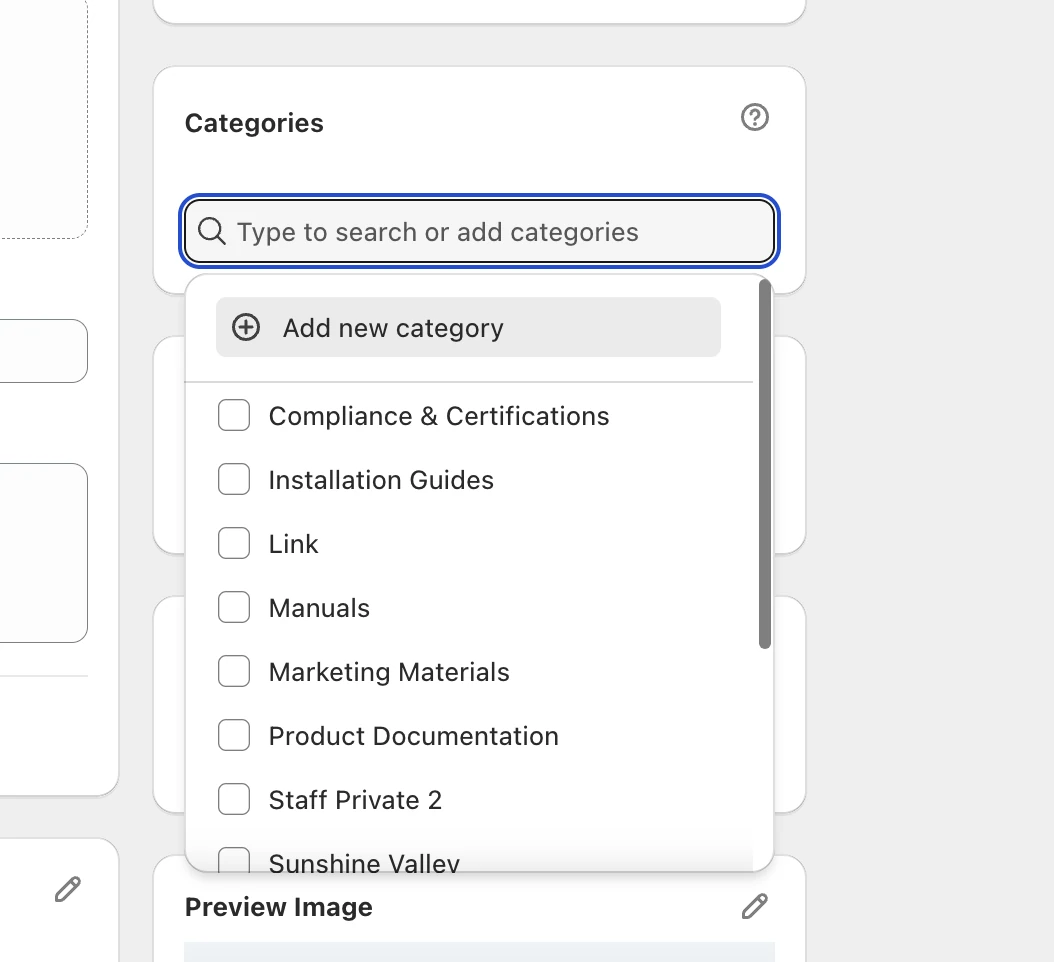
Select an existing category or add a new one without leaving the resource.
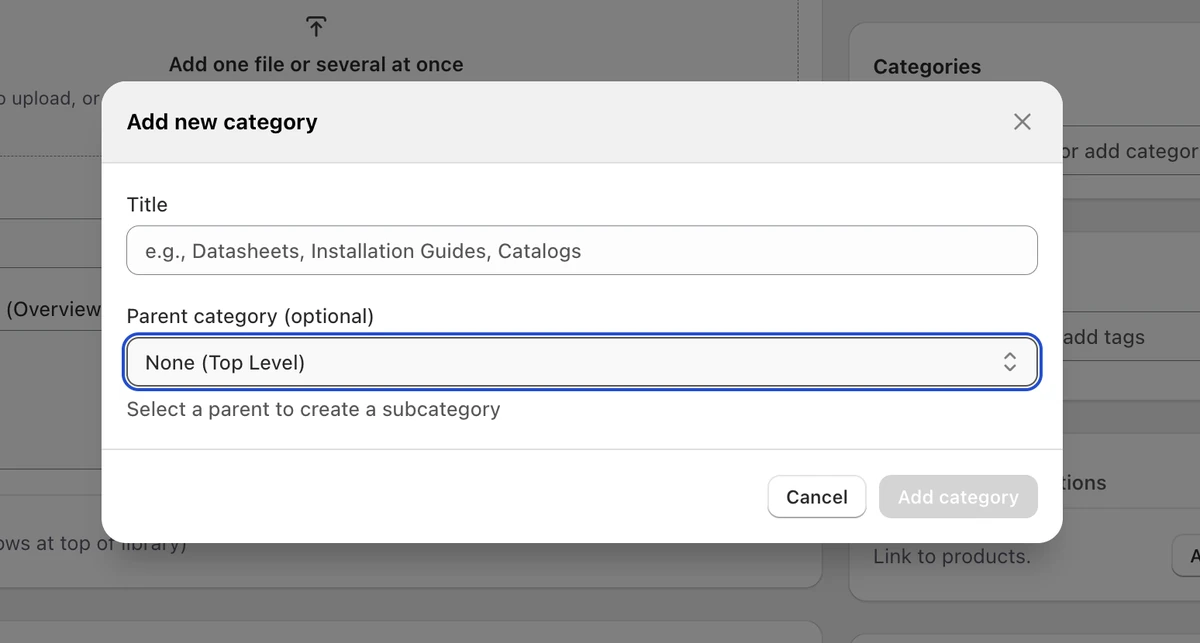
Leave Parent category as None (Top Level) for a main navigation category, or choose a parent to create a subcategory.
Manage all your categories
Use the dedicated Categories section when you want to review or manage your library structure as a whole instead of while working on one resource.
- Go to ResourceHub › Categories.
- Click Add category to create one, or open an existing category to manage it.
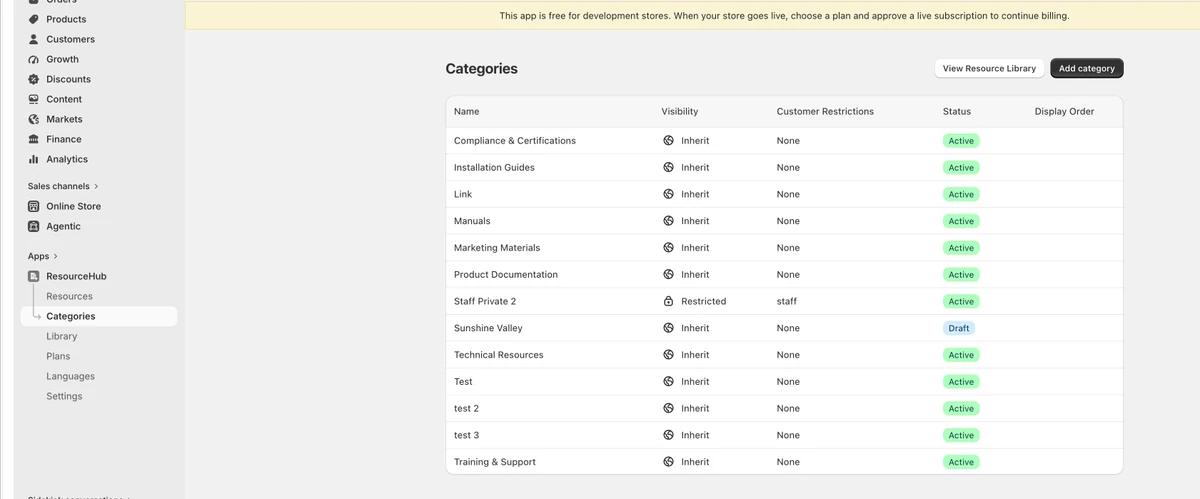
Use this view when you want to work on the category structure across your whole library.