
Classify resources with Resource Types and fields
Use Resource Types to say what a resource is, then add the structured details that matter for that type.
How Resource Types & fields work
A Resource Type classifies what a resource is, such as a Manual, Datasheet, Certificate of Analysis, or Safety Data Sheet.
ResourceHub includes predefined Resource Types for each Format. Enable the ones you use, hide the ones you do not need, rename them when your terminology is different, or create your own.
Custom fields add the structured details that matter for a Resource Type.
| Resource Type | Example fields |
|---|---|
| CoA | Lab Lot/Batch # Expiration Date |
| Manual | Document Number Revision Date |
Manage Resource Types while adding or editing a resource
You can manage Resource Types directly from the resource you are working on.
- Add a new resource or open an existing resource.
- Open Additional Details and find Resource type.
- Select an existing Resource Type, or click Add / Manage to change the list available for that Format.
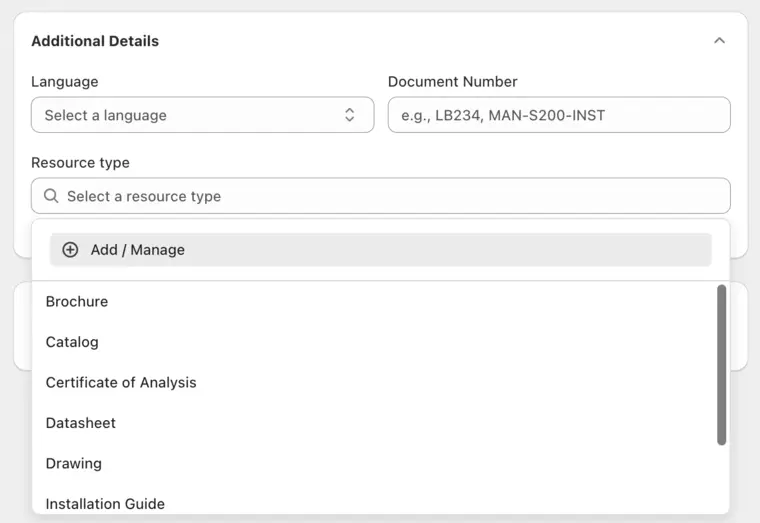
Choose an enabled Resource Type or open Add / Manage.
Edit or hide the Resource Types you already use
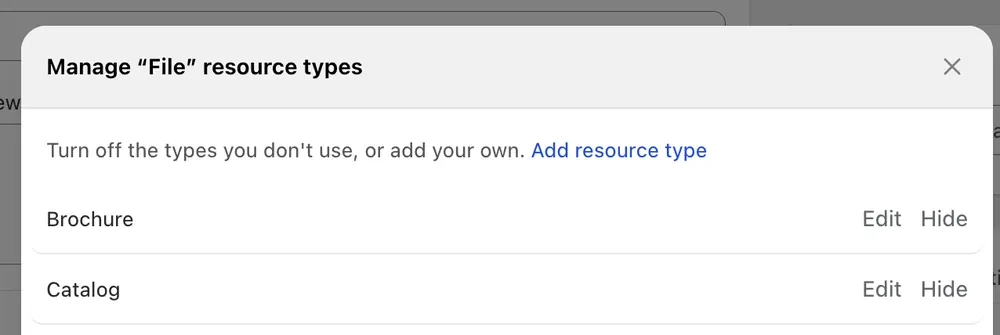
Add / Manage opens the Resource Types currently enabled for that Format.
- Click Edit to change a Resource Type title when the wording does not fit your business.
- Click Hide for a Resource Type you do not want merchants to select.
- Click Add resource type when you need another option.
Add or enable another Resource Type
ResourceHub includes additional predefined Resource Types that you can turn on when you need them.
- Click Add resource type.
- Use search to find a Resource Type, or browse the list.
- Turn on the types you want to use.
- If the Resource Type you need is not listed, search for the name you want and choose Create as a new resource type.
- Click Done.
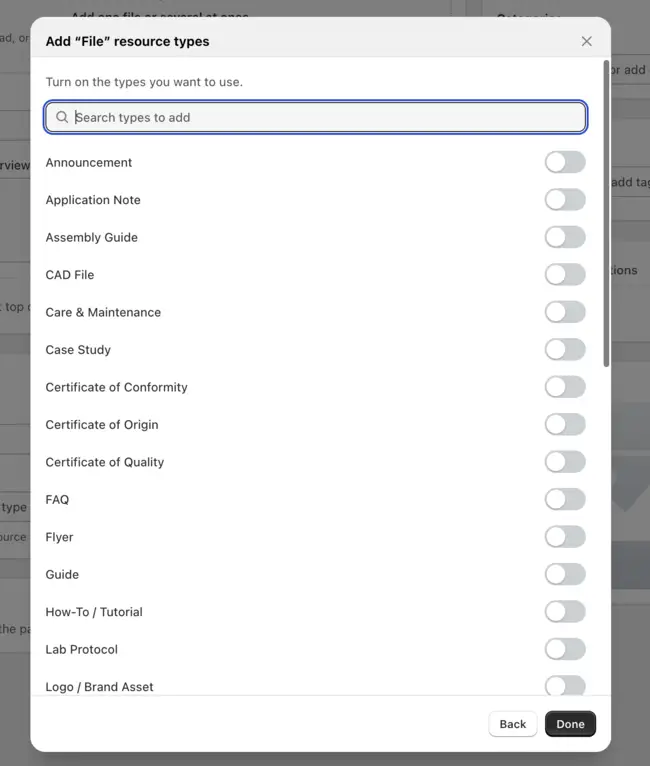
Search the predefined list and turn on only the Resource Types you use.
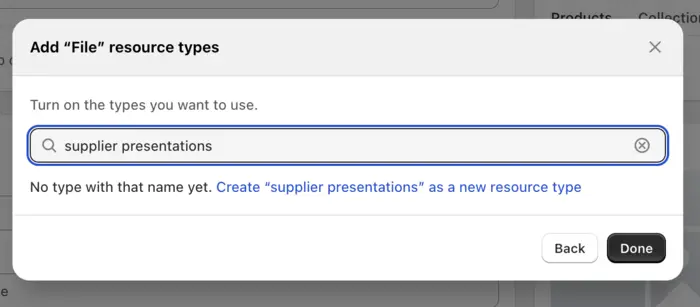
If there is no match, create the Resource Type using the name you searched for.
When you click Done, the Resource Type picker is updated with the types you enabled or created for the current Format.